Choosing a Network Kvm Switch can shape how reliably you manage servers, workstations, and other computers from a distance. The right device lets an operator view and control multiple systems through a network connection, often without traveling to a server room. Yet product descriptions can make very different devices sound alike. Port count is only one part of the decision.
Start by listing the systems you need to access and the video resolutions they use. Check whether the switch supports the required connectors, operating systems, and remote-access methods. A model with eight ports may still be a poor fit if it cannot handle your displays or your preferred security controls. Look closely at authentication options, encrypted connections, user permissions, and audit logs. These details matter when several technicians share access. They also affect how quickly you can investigate a problem.
Think about the physical setup, too. Measure rack space, check power requirements, and note whether local console access is important. For example, a small IT room may need a compact unit, while a larger environment could benefit from redundant power and centralized user management. Not always. Some advertised features may add cost without solving a real need. Compare the total setup effort, support terms, and likely expansion needs, not just the initial price. A careful choice should make routine work simpler and troubleshooting clearer. It should also fit your actual workflow, not an imagined one. Before purchasing, confirm specifications with the manufacturer and test compatibility where possible. A short test can reveal limitations that a product page leaves unclear.
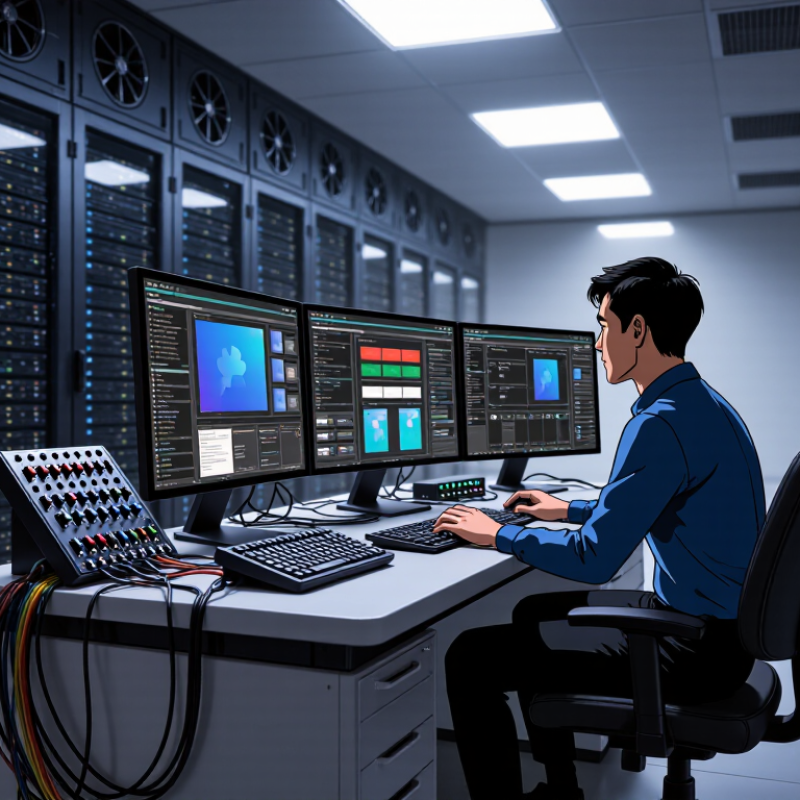
A network KVM switch lets an authorized operator control a computer over an IP network using its keyboard, video, and mouse. Unlike ordinary remote-desktop software, many units provide access before the operating system loads, which helps technicians diagnose boot failures or change firmware settings. In a server room, an operator can open a console from a nearby workstation instead of plugging a monitor into a rack. Network operations centers, data centers, and remote equipment rooms use this setup to manage multiple machines. Uptime Institute’s 2024 Annual Outage Analysis reported that 54% of respondents’ most recent significant outages cost more than $100,000. Reliable remote access can support faster troubleshooting, though it cannot prevent every outage.
Tips: Check supported video resolutions, port count, and authentication controls before choosing a unit. Place management interfaces on a restricted network, and enable multifactor authentication where available. Test access during a real maintenance window. Small compatibility gaps can be frustrating.
A useful switch should fit the work, not just the rack. For example, a technician managing headless servers may value BIOS-level access, while a control room may need several operators to view equipment status. Review logging, encryption, and failover options, too. These details are easy to overlook. Remote KVM access also depends on stable network connectivity, so keep a local recovery option for critical systems.
A network KVM switch provides remote keyboard, video, and mouse access to connected computers over a network. Because it works independently of the operating system, it can commonly be used to access setup and recovery stages as well as the running OS.
Each bar represents a stage commonly accessible through a hardware-level KVM console. Actual access depends on server connections, compatibility, and configuration.
A network KVM switch must match the computers you need to control, not just the number of ports on its case. List each system’s video output and USB requirements. A newer workstation may use DisplayPort, while an older server might still use HDMI or VGA. Check supported resolutions and refresh rates, too. A switch that connects but limits a monitor to a blurry picture is a poor fit. Small details matter.
Look at the console side as carefully as the computer side. Confirm that its keyboard, mouse, and any required USB peripherals work through the switch. For remote access, check the Ethernet interface, supported access method, and whether the unit can sit on a separate management network. Also verify user permissions and connection security. I would not assume every USB device will pass through reliably; specialty keyboards and storage devices can behave differently.
Tips: Write down the exact ports on every target computer before shopping. Check cable lengths and allow room for adapters behind the rack. If several operators need access, confirm how sessions are shared or handed off. Test one representative system first, especially when mixing old and new interfaces.
List every computer that must be reached, including backup servers, test machines, and systems used only during maintenance. Count both. Then estimate how many people may need access at the same time, not just how many have accounts. A six-person team may share four systems, while one operator may need to reach ten. Those are different capacity needs. Check port count and concurrent-user limits separately; a switch can connect many computers but allow only a few active users.
At a small operations desk, two engineers might alternate control of a handful of machines. In a support room, several people may need separate sessions without interrupting one another. Ask whether users need access from local consoles, remote workstations, or both. Also check whether permissions can restrict users to specific systems. This helps prevent accidental changes to a production server. Review busy periods, such as patch nights, rather than choosing capacity from an average day. It is easy to undercount occasional users. I have seen plans overlook a maintenance laptop that becomes essential during an outage. Leave some room for growth, but avoid paying for capacity the team is unlikely to use. A little spare capacity helps. Still, the right number depends on real workflows, not a guess.
When comparing network KVM switches, look beyond the login screen. Check whether management traffic is encrypted and whether administrators can use multi-factor authentication. These protections matter when a remote session exposes a server’s keyboard, video, and power controls. Strong role-based permissions also help: a technician may need console access, while only a smaller group should change system settings. Keep access narrow.
Audit logs should record who connected, when, and what actions they took. Confirm that logs can be exported and reviewed, rather than merely displayed. Ask how firmware updates are verified and how long security fixes are provided. A separate management network can reduce exposure, though it adds setup work. Not every team will configure it correctly.
Remote management quality shows up during failures. Test access from outside the local network, including a slow connection, and check whether the console remains usable during boot. Look for session timeouts, clear alerts, and controls that end unattended sessions. Small details count. A frozen screen during a restart can waste an hour. Compare the recovery process, not just the feature list, and consider whether your team can maintain the setup over time. No scorecard captures every trade-off; a hands-on trial may reveal awkward steps that specifications miss.
| Comparison Dimension | Why It Matters | Baseline to Check | Stronger Target | How to Validate |
|---|---|---|---|---|
| Encrypted remote access | Protects administrator credentials and remote KVM traffic while it crosses the network. | A documented encrypted web interface; confirm whether encryption covers the entire remote session or only the login page. | Current TLS support, configurable certificates, and no reliance on unencrypted management protocols for normal access. | Review the security documentation and configuration options; test the management interface with an approved security scanner. |
| Authentication and MFA | Strong authentication reduces the risk that a stolen or guessed password will expose server consoles. | Unique user accounts and configurable password policies; avoid shared administrator logins where possible. | Multi-factor authentication, with support for centralized identity services where required by the organization. | Confirm which authentication methods are supported, whether MFA applies to all remote entry points, and how recovery is handled. |
| Role-based access control | Limits users to the servers and functions they need, helping prevent accidental or unauthorized changes. | Separate accounts and per-device permissions, rather than one unrestricted access level for every user. | Granular roles for viewing, controlling, and administering devices, with group-based assignment if available. | Create test accounts with different roles and verify that each can access only its permitted devices and actions. |
| Session controls and audit trail | Session limits and records support incident investigation and reduce unattended-access risks. | Automatic idle timeout and logs for logins, failed attempts, and administrative changes. | Searchable session and user activity records, configurable retention, and export or forwarding to a central logging system. | Check which events are recorded, how long logs are retained, and whether timestamps can be synchronized with a trusted time source. |
| Remote management features | A remote KVM connection can provide console access even when a server operating system is unavailable. | Remote keyboard, video, and mouse access to connected systems through a supported browser or client. | Documented access to pre-boot screens and remote power controls, where supported by the connected hardware and configuration. | Test access during reboot and before the operating system loads; verify supported video resolutions, browser requirements, and power-control behavior. |
| Network exposure and access paths | Reducing reachable services and restricting management traffic lowers the attack surface. | A documented list of required ports and services, with access restricted to authorized management networks. | Support for network segmentation and secure remote-access designs, such as access through an organization-managed VPN or jump host. | Compare the required ports with your firewall policy and verify that the management interface is not exposed directly to the public internet. |
| Firmware maintenance | Updates can address security issues and compatibility problems over the device’s service life. | A published update process and clear instructions for checking the installed firmware version. | A documented security-update policy, signed firmware where supported, and a recovery procedure for failed updates. | Review update history and support policy; confirm how updates are verified, applied, and rolled back or recovered. |
| Capacity and availability | Port count, user concurrency, and recovery options affect whether the switch fits operational needs. | Enough ports for current devices, with documented limits on simultaneous remote sessions. | Capacity for planned growth and a defined recovery or replacement plan for critical management access. | Count current and planned connections, test expected concurrent use, and document how console access will be restored if the device fails. |
Compare documented capabilities and test them in your own environment. Security features, supported protocols, and remote-management functions vary by model, firmware, and configuration.
A network KVM switch should be judged by responsiveness, resilience, and its full operating cost. Test it from the places operators actually work: a nearby office and a remote connection with limited bandwidth. Watch a moving screen, open firmware menus, and type commands. Delayed input matters. For daily use, compare video resolution, refresh rate, and session latency under load, not just headline specifications. A smooth demo is not proof of steady performance.
Reliability deserves equal weight. Look for redundant power, automatic network failover, clear event logs, and recoverable user sessions. Check how firmware updates are managed and whether access can require multifactor authentication.
Uptime Institute’s 2024 Global Data Center Survey found that 54% of respondents said their most recent significant outage cost more than $100,000; 16% reported costs above $1 million.
The figures concern data-center outages broadly, not KVM devices alone, but they show why weak remote access can become an expensive operational risk.
Calculate total cost over several years. Include licenses, support, compatible cables, spare units, and the staff time needed for setup. Compare warranty terms and response times, not only purchase prices.
In a server room, one failed port can leave a technician walking between racks at midnight. That is not theoretical.
Still, extra features can be wasteful if nobody uses them; teams should map required ports and access roles before buying. I would leave room for uncertainty: network conditions change, and paper specifications rarely tell the whole story.

We have over 30 years of experience in designing complete hydraulic systems, repairs and distribution of fluid power equipment and parts.
FOLLOW US ON :
Address:
4020 SE 45th CT.
Ocala, FL 34480
Phone No:
Email:
sales@cunninghamfluidpower.com